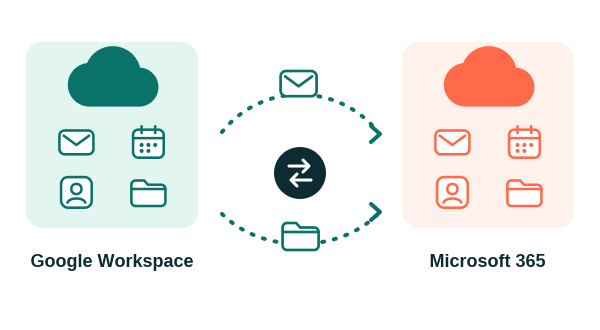
A Google Workspace to Microsoft 365 migration moves your company’s Gmail, calendars, contacts and Google Drive files into Outlook, OneDrive and SharePoint, then points your domain’s mail at Microsoft instead of Google. Email Switch Pros, a BizTechPro service, plans and runs that move for businesses anywhere in the US. A few things don’t carry over on their own, so the first job is finding out which of them matter to you.
What moves from Google Workspace to Microsoft 365?

Microsoft’s own migration covers the core of what people use every day. Here’s where each piece ends up:
- Email. Each Gmail mailbox is copied into an Exchange Online mailbox, which people open in Outlook. Gmail filters come across as Outlook rules, but Microsoft leaves them switched off so each person can check them before turning them on.
- Calendars. Events move into each person’s Outlook calendar.
- Contacts. Contacts move into Outlook. Microsoft copies up to three email addresses per contact, so anyone who keeps more than that on a single card should know some will be left behind.
- My Drive files. Each person’s Google Drive moves into their own OneDrive.
- Google Docs, Sheets and Slides. These are converted to Word, Excel and PowerPoint files on the way over. The originals in Google Drive stay as they were.
- Shared drives. Team folders usually land in SharePoint sites, often the ones behind Microsoft Teams. Access can come across too, but only when Google groups are matched to Microsoft 365 groups with the same members and permission settings are chosen on purpose.
- Google Forms. Microsoft now copies Forms as well, as long as a destination for them is set up first.
What doesn’t move, or needs rework afterward?
This is the part most DIY attempts trip over. Microsoft’s documentation lists these gaps, and each one needs a decision:
- Out-of-office replies and vacation settings don’t transfer. People set them again in Outlook.
- Shared calendars, event colors and room bookings don’t transfer. Shared calendars are re-shared, and meeting rooms are set up as room resources in Microsoft 365.
- Contact tags and contact website addresses are left out.
- Very large items. The biggest single message that moves is set by your Microsoft 365 mail settings, 35 MB by default. Mailboxes over 100 GB need a different method.
- Sharing links to outsiders. Links you sent to clients or vendors aren’t recreated, and files aren’t automatically re-shared with outside people. Those shares are rebuilt by hand, on purpose.
- File permissions. Copying file-level permissions is off by default. Otherwise files take the permissions of the folder they land in, which can be wider or narrower than before.
- Older file versions. Only the latest version of each file is copied unless older versions are set to move before the migration starts.
- Google Sites and Google Maps aren’t migrated. Google Drawings arrive as PNG images, so they can’t be edited the way they could before.
- Shortcuts and “orphaned” files. Drive shortcuts are skipped, and files that have lost their parent folder aren’t picked up at all, so they’re worth finding first.
- Anything outside mail, calendar, contacts and Drive, such as chat history or custom automations built in Apps Script, isn’t covered by Microsoft’s mailbox or file migration and needs its own plan.
Outlook also organizes mail in folders rather than Gmail-style labels. It’s worth telling people up front, so nobody thinks their filing system has disappeared.
What are the steps of a Google Workspace to Microsoft 365 migration?
1. Planning
We start with an inventory: every user, shared mailbox, group, shared drive and domain, plus how much data each holds and who shares files with people outside the company. From that we write a plan that says where each piece goes, what won’t move and how it will be handled. Microsoft 365 accounts are created for everyone before any data is copied, because Microsoft’s migration requires users to exist first.
2. Copying mail and files
Mail, calendars and contacts are copied in batches, so a migration can run in stages instead of all at once. Files move separately into OneDrive and SharePoint. Copying doesn’t delete anything in Google, so people keep working normally while it runs, and later passes pick up new or changed items.
3. DNS and MX cutover
When the copies are in place, your domain’s MX record is changed so new mail is delivered to Microsoft 365 instead of Gmail, along with the other email records Microsoft’s setup asks for. Microsoft’s guidance is to have every mailbox ready before the MX change, so new mail has a mailbox waiting when the records change. Your domain itself stays with your registrar; only its records change.
4. Sign-in changes for your team
On cutover day, people sign in with their Microsoft 365 account instead of Google. In practice that means:
- Setting up two-step sign-in on the new account
- Opening Outlook on each computer and adding the account to phones
- Replacing Google Drive for desktop with OneDrive sync
- Updating bookmarks and saved passwords that point at Google
We give staff a short, plain guide for the day, so the questions don’t all land on one person.
5. After the move
A final pass copies anything that changed late. Then the clean-up begins: turning on the rules people want, re-sharing calendars, rebuilding outside shares, setting out-of-office replies, and checking the migration reports for anything skipped. Keep Google Workspace active until those checks are done. Cancelling it is the last step, not the first.
How we run your migration
- One project lead from start to finish, who knows your setup and answers your questions.
- A written plan before anything moves, including the list of what won’t transfer and what we’ll do about each item.
- A pilot first. A few users go before everyone else, so surprises show up early and small.
- Checks, not assumptions. We read the migration reports, compare item counts and spot-check files and permissions before calling a batch done.
- Remote, nationwide. The work is done remotely for businesses anywhere in the US.
- Support after the move, so the first questions from your team have somewhere to go.
If you’re still weighing the cost, our guide on how much an email migration costs explains what drives a quote, and our pricing page shows how we build one. Moving files only? See Google Drive to OneDrive and SharePoint migration.
Who is behind Email Switch Pros?
Email Switch Pros is a BizTechPro service. BizTechPro is a managed IT and cybersecurity company and Microsoft Partner, based in Pearl River, NY, and in business since 2008. You can read more about the company at biztechpro.net.
Talk to us about your move
Tell us how many people you have and what you use today, and we’ll tell you plainly what the move involves. Request a quote.
Frequently asked questions
Could any email go missing when we switch to Microsoft 365?
The plan is built to avoid that. Everyone gets a Microsoft 365 mailbox before your domain's mail records change, which is the order Microsoft recommends, so new mail has a mailbox waiting when the records change. Older Gmail is copied across before and after the change.
Do Google Docs stay Google Docs after the move?
No. Google Docs, Sheets and Slides are converted to Word, Excel and PowerPoint files as they move into OneDrive or SharePoint. The originals in Google Drive aren't changed, so you can compare them if something looks off.
Can my team keep working in Google Workspace while you migrate?
Yes. Copying mail and files doesn't delete anything in Google, so people keep working as usual until the cutover. Changes made in the meantime are picked up in a later pass.
How long does a Google Workspace to Microsoft 365 migration take?
It depends on the number of mailboxes, how much data they hold and how many shared drives you have. We agree a schedule with you after the assessment, once we know what's actually moving.
Does our domain have to move to Microsoft?
No. Your domain stays with the company you bought it from. Only some of its DNS records change, so that mail and sign-in point to Microsoft 365.
Do you work with businesses anywhere in the US?
Yes. Email Switch Pros works with businesses anywhere in the US, and the work is done remotely. To talk through your setup, ask about your migration.