When a do-it-yourself file move stalls
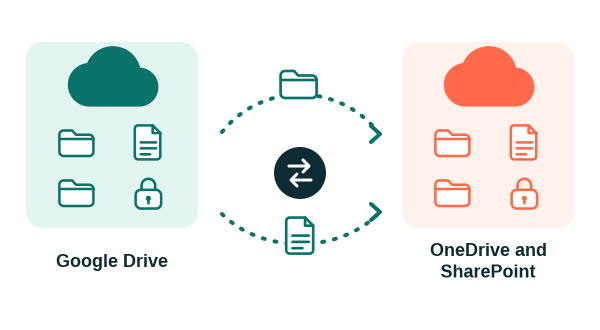
To migrate Google Drive to OneDrive for a business, each person’s My Drive is copied into their own OneDrive and each shared drive into a SharePoint site, with Google Docs, Sheets and Slides converted to Office files along the way. The copy itself is the easy part. What stalls most do-it-yourself attempts is everything around it.
- Shared drives need a home picked in SharePoint before anything moves.
- Permissions don’t come across unless someone sets that up on purpose.
- Size is hard to judge in advance. Microsoft notes that Google Docs, Sheets and Slides created or edited before May 2, 2022 carry no size information, so a scan can count them as almost nothing.
- Leftovers such as files that have lost their parent folder, or two shared drives with the same name, don’t move cleanly.
If your own move stopped at one of these, Email Switch Pros, a BizTechPro service, can pick it up. That’s true whether the job is a straight Google Drive to SharePoint migration or a full company file move.
My Drive and shared drives
| In Google | Lands in Microsoft 365 |
|---|---|
| A person’s My Drive | That person’s OneDrive |
| A shared drive | A SharePoint site, often the one behind a Microsoft Teams team |
| A folder inside a shared drive | A folder in that site’s document library |
The choice matters because, unless file-level permissions are migrated, files take on the permissions of the folder they land in. Put a finance shared drive into a site the whole company can open, and the whole company can open it. Microsoft also advises against reorganizing folders partway through, because renamed or moved folders are treated as new and copied again. Agree the structure before the move, or tidy up after it.
A few naming problems are worth fixing first. Two shared drives with the same name can’t both move as they are, a “/” in a shared drive’s name isn’t supported, and files with the same name in the same folder get (1), (2) added to their names.
Permissions and sharing links
Microsoft’s file migration from Google can carry permissions across, but only when it’s set up to:
- People and groups are matched first. Each Google user and group is mapped to its Microsoft 365 account. Microsoft is clear that this mapping alone doesn’t bring file-level permissions with it.
- File-level permissions are off by default. They have to be switched on before the move, or files inherit from their new folder.
- Shared drive members come across when a Microsoft 365 group with the same members is mapped to the Google group that had access.
- Outside sharing isn’t recreated. Links you sent to clients or vendors don’t carry over, and files aren’t automatically shared with external people.
Our plan starts with a list of folders that are shared outside the company and folders that hold sensitive files, such as HR and finance. Then we check those on the new side before anyone else gets access.
Google Docs, Sheets and Slides
During the move, Google’s export converts native Google files into Office formats. Microsoft’s documentation lists the mapping:
- Google Docs become Word files (.docx)
- Google Sheets become Excel files (.xlsx)
- Google Slides become PowerPoint files (.pptx)
- Google Drawings become PNG images
- Google Forms can move if a destination for them is set up first
Google Sites and Google Maps don’t migrate, and Drive shortcuts are skipped. The originals in Google Drive aren’t affected, which makes it easy to compare a converted file with its source.
Version history needs a decision up front. By default only the latest version of each file is copied, and older versions only come across if that’s set before the migration starts. After the move, open your most important documents and spreadsheets and check the formatting and formulas, especially anything built with Google-only features.
How the project runs
We inventory your drives, owners and outside shares, then write a plan that names a destination for every drive. One team or one shared drive goes first as a pilot. After each batch we read Microsoft’s migration reports, compare file counts and spot-check permissions. Later passes copy only new or changed files, and Google Drive stays in place until you’ve signed off. When the move is done, people sign in to OneDrive sync on their computers instead of Google Drive for desktop.
Moving email too? See our Google Workspace to Microsoft 365 service. The stages are described on our process page, and what moves covers the limits for every direction.
Frequently asked questions
Do Google Docs become Word files?
Yes. Google Docs convert to Word, Sheets to Excel and Slides to PowerPoint as they move. The originals stay in Google Drive, so you can check a converted file against its source.
Do sharing permissions carry over to OneDrive and SharePoint?
They can, but copying file-level permissions is off by default and has to be set up on purpose, with Google users and groups matched to their Microsoft 365 accounts. Links shared with people outside the company aren't recreated.
Can we move files without moving email?
Yes. A file migration from Google Drive to OneDrive and SharePoint can run on its own, as long as everyone has a Microsoft 365 account to receive the files. Email can stay in Gmail.
Is file version history kept?
Only the latest version moves by default. Older versions can come across too, but that has to be set before the migration starts.